


Atualização do Virtual Cockpit do Audi Q5 8R: Guia de instalação completo para 2009–2017 Q5 e SQ5
Como Instalar um Virtual Cockpit Audi Q5 8R nos Modelos 2009–2017?
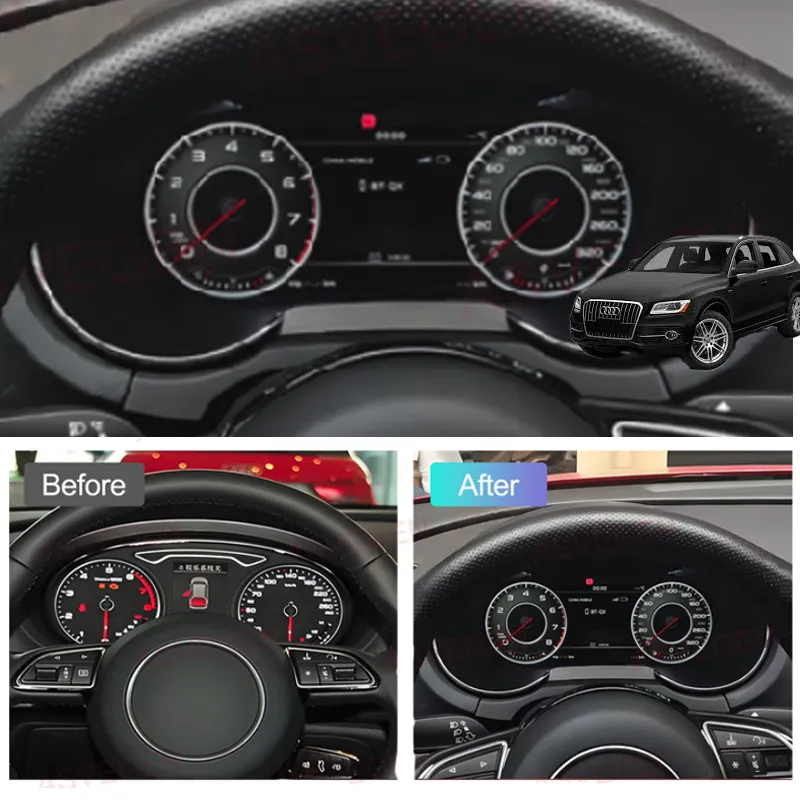
Resposta rápida
Para um compatível 2009–2017 Audi Q5 / SQ5 8R com o painel de instrumentos mecânico original, a rota de retrofit é documentar o estado original do veículo, remover o painel de fábrica, transferir a eletrónica original necessária para o novo conjunto de painel digital, ligar o chicote correspondente sem cortes, manter o USB de atualização acessível, testar a alimentação do painel antes do fecho final e, em seguida, concluir as verificações necessárias de calibração do visor e do combustível.
Este é um procedimento de oficina específico do veículo, não uma promessa de compatibilidade universal. A versão exata do painel fornecida e a base do veículo ainda determinam as funções finais suportadas e os percursos de menu.
Esta página é um guia de instalação de Retrofit do Virtual Cockpit Audi Q5 8R iKAGOO para compatível modelos Audi Q5 / SQ5 8R de 2009–2017 com o painel de instrumentos mecânico original. Foi concebida como um procedimento de oficina verificável, não como uma garantia universal de compatibilidade, e não deve ser interpretada como uma promessa de que todas as funções, estados de aviso ou variantes do veículo se comportam de forma idêntica.
Plug-and-Play limite: Plug-and-Play significa sem corte ou emenda do chicote original do veículo. Ainda assim, requer desmontagem do tablier, transferência da placa original, inspeção da placa auxiliar quando aplicável, encaminhamento do cabo USB, verificação das definições e calibração.
Foco no ano do modelo Audi Q5 8R: Este guia foi escrito para a geração Audi Q5 / SQ5 8R, geralmente vendida como 2009–2017 nos mercados europeu e norte-americano. Aplica-se apenas a veículos compatíveis com o percurso original do painel mecânico. Qualquer referência partilhada a definições Audi / Volkswagen só deve ser aplicada quando a versão do painel Q5 fornecida utilizar o mesmo percurso de menu.
Que Modelos Audi Q5 8R Cobre Este Guia de Instalação do Virtual Cockpit?
Resposta direta
Esta rota de instalação foi escrita para veículos Audi Q5 / SQ5 8R de primeira geração compatíveis que utilizam o painel de instrumentos mecânico original. Para o hardware iKAGOO, o intervalo de compatibilidade funcional neste guia continua a ser 2009–2017. O veículo ainda deve ser confirmado a partir do painel original e das fotografias do tablier antes de encomendar ou desmontar.
A Audi vendeu o Q5 de primeira geração sob diferentes nomes de motor, acabamento e marketing na Europa e na América do Norte. Esses nomes são úteis para identificar o veículo, mas o nome do motor, o nível de acabamento ou o emblema do modelo por si só não provam a compatibilidade do painel. A rota física do painel original é a referência decisiva.
América do Norte: Audi Q5 / SQ5 8R
- Audi Q5 8R / Q5 de primeira geração: Anos-modelo dos EUA 2009–2017.
- Nomes comuns do Q5: Q5 2.0T / 2.0 TFSI quattro, Q5 3.2 FSI quattro, Q5 3.0T / 3.0 TFSI quattro, Q5 TDI / 3.0 TDI clean diesel quattro e Q5 hybrid quattro.
- Modelo de desempenho: Audi SQ5 8R, comummente identificado na América do Norte como o modelo 3.0 TFSI / 3.0T quattro.
- Nomes de acabamento vistos nos EUA e no Canadá: Premium, Premium Plus e Prestige. O nome do nível de equipamento não substitui a confirmação de compatibilidade baseada em fotografias.
- Não esta geração: Os veículos Q5 do ano-modelo 2018 dos EUA e posteriores pertencem à rota da geração seguinte e não devem utilizar este procedimento de instalação.
Europa: Audi Q5 / SQ5 8R
- Audi Q5 8R / Q5 de primeira geração: a primeira geração foi introduzida na Europa em 2008; este guia iKAGOO tem um limite de vendas/compatibilidade confirmado de 2009–2017. Um veículo registado em 2008 requer confirmação individual antes de este guia ser utilizado.
- Nomes comuns a gasolina: Q5 2.0 TFSI, Q5 3.2 FSI, Q5 3.0 TFSI e Q5 hybrid quattro.
- Nomes comuns a diesel: Q5 2.0 TDI e Q5 3.0 TDI quattro.
- Nomes de desempenho: SQ5 TDI, SQ5 TDI plus e, nos mercados aplicáveis, SQ5 TFSI. Estes nomes descrevem a versão do veículo; o painel original ainda tem de corresponder à rota suportada.
- Designação da geração da carroçaria: Q5 8R, Q5 Mk1, Q5 de primeira geração, Q5 8R pré-restyling e Q5 8R restyling podem todos ser utilizados por proprietários e oficinas.
Termos úteis de pesquisa e identificação: Audi Q5 8R virtual cockpit, painel de instrumentos digital Audi Q5, painel LCD Audi Q5, painel digital Audi Q5 8R, Audi Q5 Mk1 virtual cockpit, painel digital Audi SQ5 8R, retrofit do painel de instrumentos Audi Q5 2009–2017.
Limite de compatibilidade: Estes nomes são incluídos para que os proprietários europeus e norte-americanos possam identificar a geração correta. São não uma afirmação de que todos os motores, níveis de equipamento, especificações de país ou opções de fábrica utilizam eletrónica idêntica.
O que deve ser confirmado antes de qualquer trabalho de remoção?
- Modelo exato do veículo e ano do modelo.
- Painel de instrumentos mecânico original fotografado enquanto está ligado.
- Fotografia completa do painel de bordo e da moldura do painel de instrumentos.
- Configuração LHD ou RHD.
- Quaisquer luzes de aviso ou mensagens já presentes antes do retrofit.
- Quaisquer componentes eletrónicos não originais, adaptadores ou cablagem modificada previamente instalados.
Não desmontar primeiro e confirmar depois. A fotografia do painel original ligado é a base para comparar avisos, forma do painel e configuração da placa dador. Se o veículo não corresponder à rota documentada do painel mecânico 8R, pare e confirme a compatibilidade antes de continuar.
Que definições devem ser verificadas antes de remover o painel de fábrica do Audi Q5 8R?
Resposta direta
Antes de remover o painel mecânico original, documente o estado atual dos avisos. Onde o menu original disponibiliza estas funções, defina o Aviso de pneus de inverno e aviso de limite de velocidade do veículo para o valor máximo disponível e, em seguida, desative as funções de aviso no menu multifunções de limite de velocidade.
1. Registar a condição original
Ligue a ignição e fotografe o painel de instrumentos antes de o desmontar. Registe a quilometragem, o nível de combustível e quaisquer luzes de aviso ou mensagens visíveis que possam ser relevantes mais tarde.
Porquê: Depois de instalar o novo ecrã, precisa de uma referência fiável de antes/depois. Um aviso que já existia não deve ser diagnosticado como uma falha da adaptação.
2. Normalizar as configurações de aviso disponíveis
Entre no menu original do veículo. Defina o aviso de pneus de inverno e o aviso de limite de velocidade para o valor máximo disponível e, em seguida, desligue as funções de aviso relevantes onde o menu o permitir.
Antes de continuar: Fotografe o estado final do menu para que o instalador o possa comparar após a ligação à corrente.
Limite de versão: O texto do menu pode variar consoante a especificação do veículo. Se o veículo fornecido não apresentar o mesmo percurso de definição, não force um percurso de menu Audi/VW diferente só porque este aparece noutra versão do painel de instrumentos.
Como Remover o Painel de Instrumentos Mecânico Original do Audi Q5 8R?
Baixe o volante e retire a proteção inferior contra poeira
Mova o volante para a posição mais baixa possível para criar espaço de trabalho à frente do painel de instrumentos de fábrica. Solte a proteção inferior contra poeira / o revestimento inferior com cuidado, em vez de puxar o painel de instrumentos contra ele.
- Faça: crie espaço suficiente para o painel de instrumentos avançar sem raspar a abertura do revestimento.
- Verificar: a proteção inferior deve mover-se livremente e não deve permanecer presa contra a extremidade do painel de instrumentos.
- Evite: fazer alavanca diretamente contra a face transparente do painel de instrumentos ou forçar uma extremidade do revestimento que não se soltou.
- Pare se: o revestimento oferece forte resistência; verifique novamente os pontos de fixação antes de aplicar mais força.
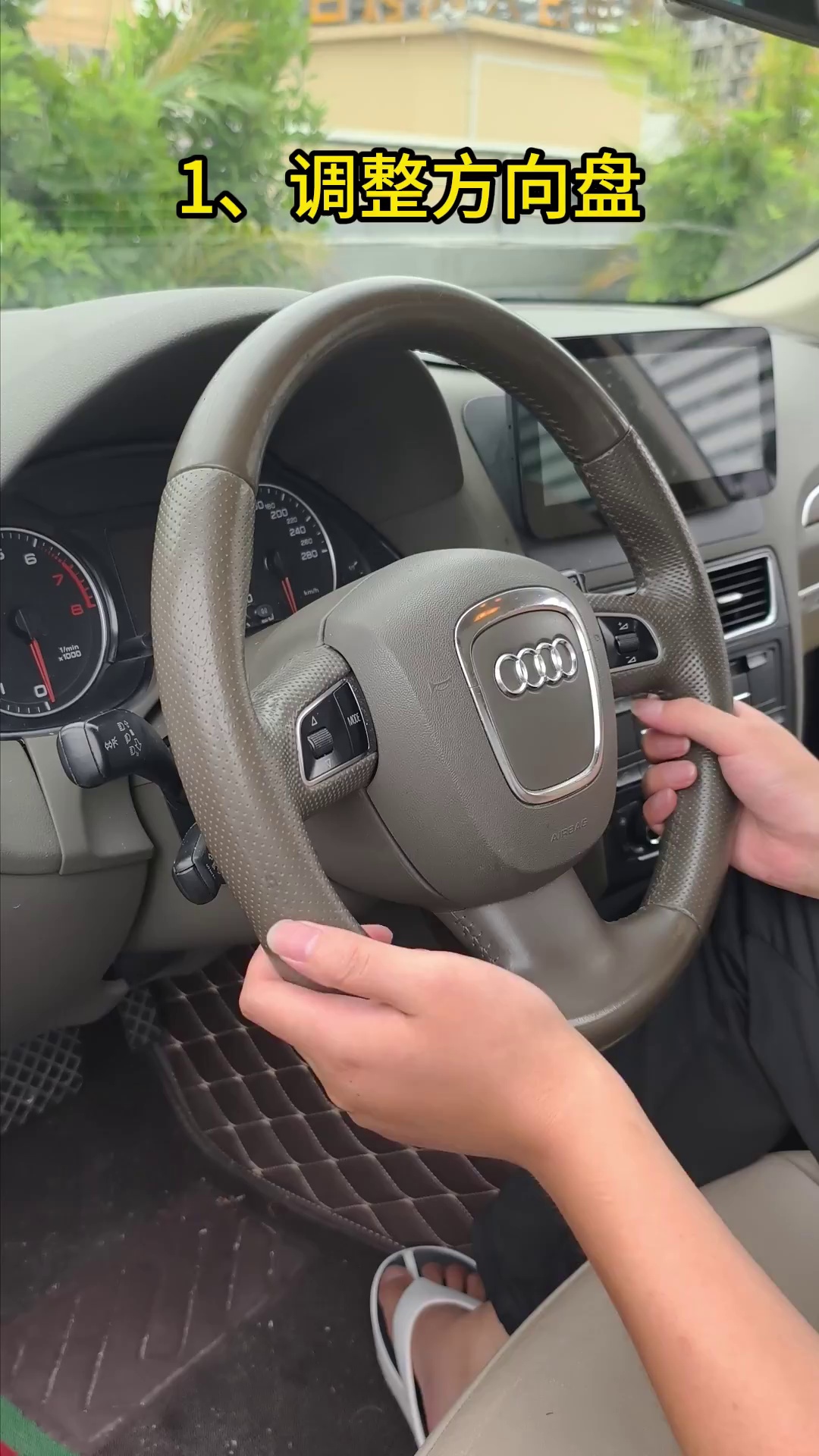
Remova os parafusos de fixação, puxe o painel de instrumentos para a frente e desligue a ficha de fábrica
Remova os parafusos de fixação originais. Segure o painel de instrumentos com ambas as mãos, traga-o para a frente num movimento controlado e, em seguida, aceda ao conector de fábrica. Solte o conector pelo seu mecanismo de bloqueio, em vez de puxar pelo feixe de cabos.
- Faça: segure o painel de instrumentos enquanto o último ponto de fixação é solto.
- Verificar: o conector e os terminais devem parecer direitos e intactos após a desconexão.
- Evite: torcer o conector, puxar pelos cabos ou colocar o painel de instrumentos removido virado para baixo sobre uma superfície dura.
- A seguir: mova o painel de instrumentos original completo para uma bancada limpa e acolchoada, porque a sua eletrónica é necessária para o percurso de adaptação.
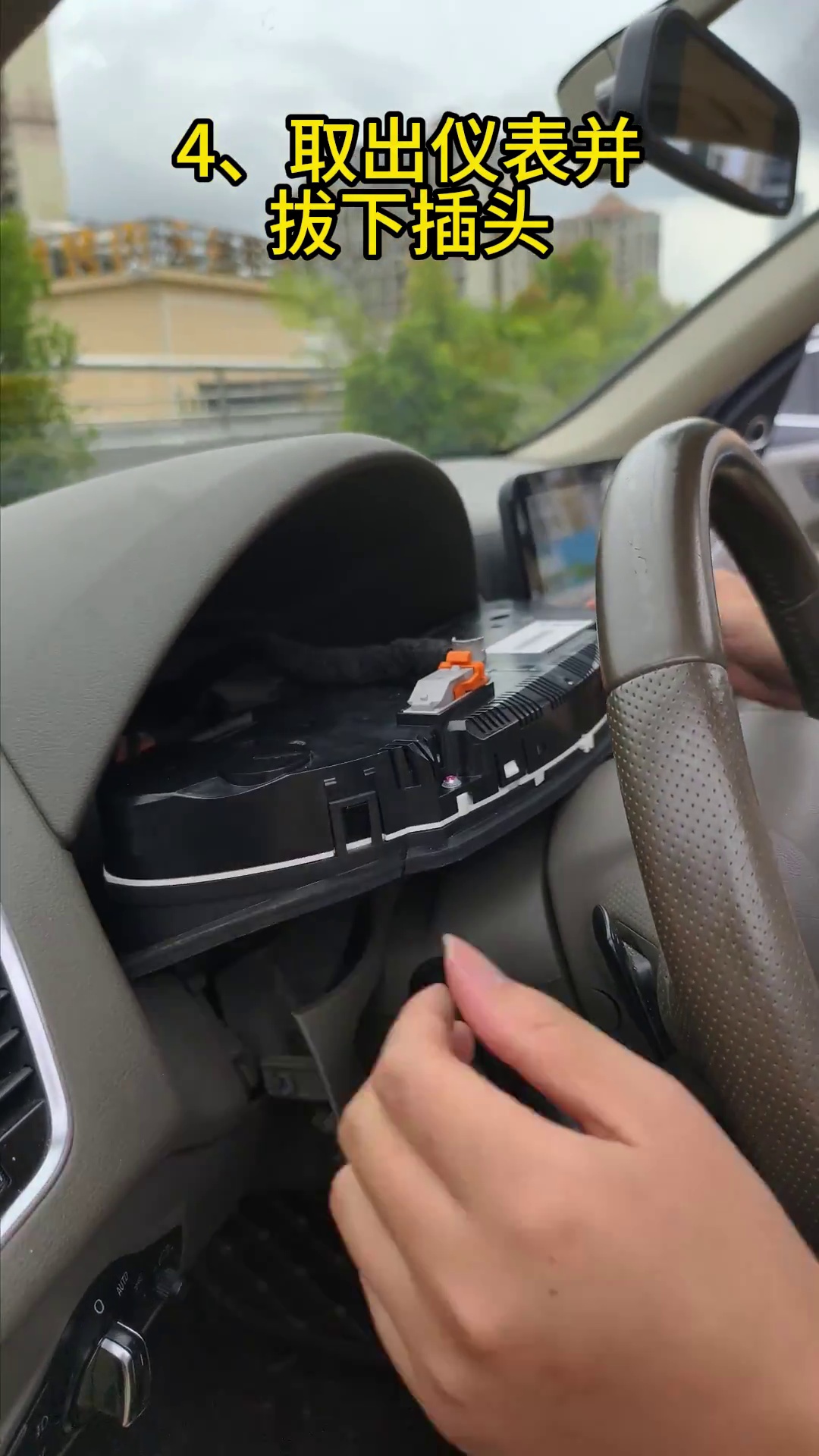
Como Transferir a Eletrónica do Painel de Instrumentos Original do Audi Q5 8R para o Painel de Instrumentos Digital?
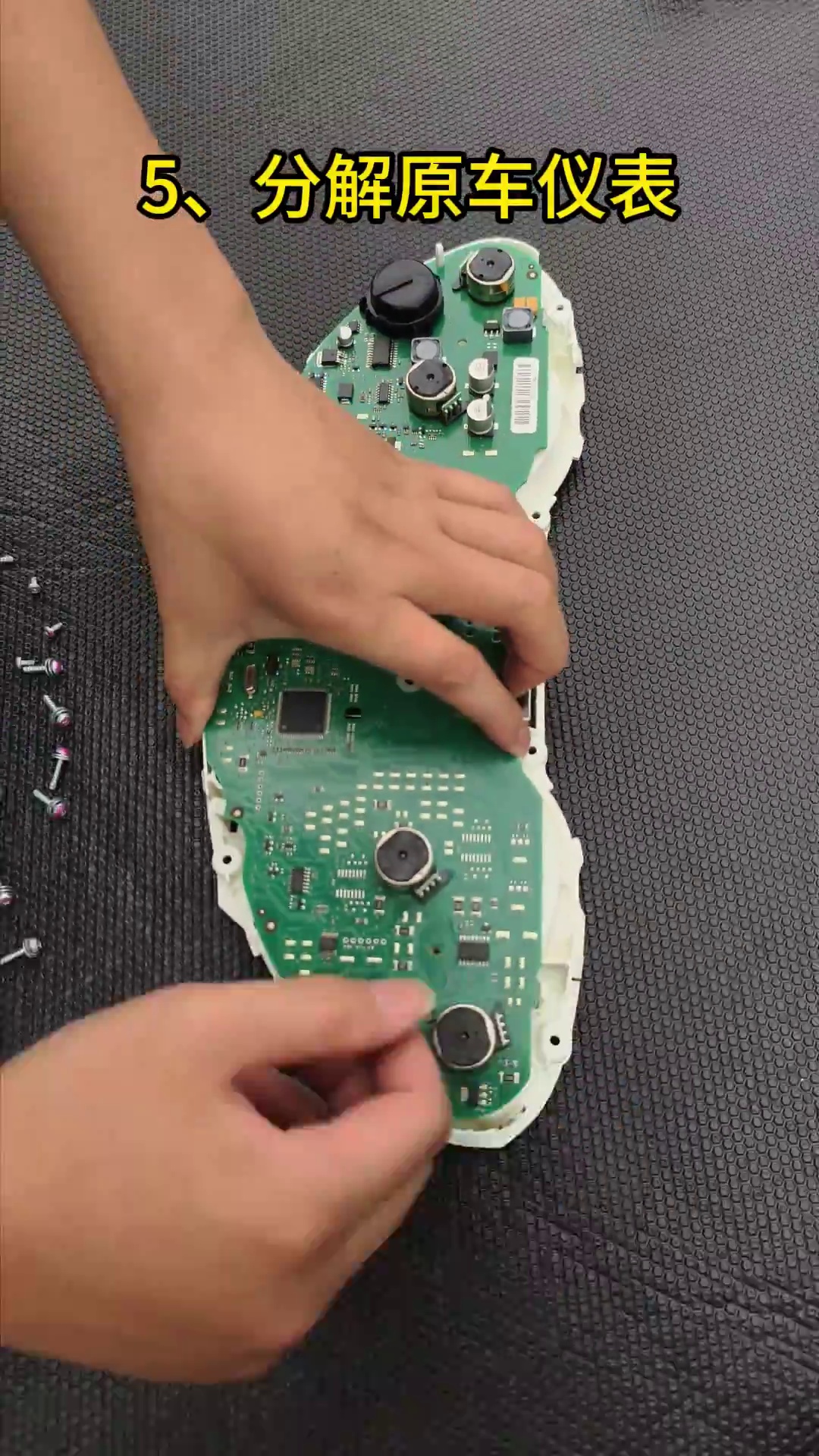
Abra o painel de instrumentos dador numa superfície de trabalho limpa, acolchoada e protegida contra estática
Coloque o painel de instrumentos mecânico original numa bancada acolchoada. Antes de tocar na PCB, descarregue a estática do corpo tocando em metal ligado à terra. Abra a caixa com cuidado e mantenha os parafusos e as peças da caixa removidos agrupados na sua ordem original.
- Manuseie a PCB pelas bordas. Evite tocar em chips, componentes soldados e superfícies de contacto.
- Mantenha o hardware organizado. Não misture parafusos de diferentes locais da carcaça.
- Inspecione antes da transferência. Procure danos existentes, contaminação ou marcas de reparação anteriores.
- Pare se: a placa dadora está visivelmente danificada ou o painel foi modificado de uma forma que não corresponde ao percurso documentado.
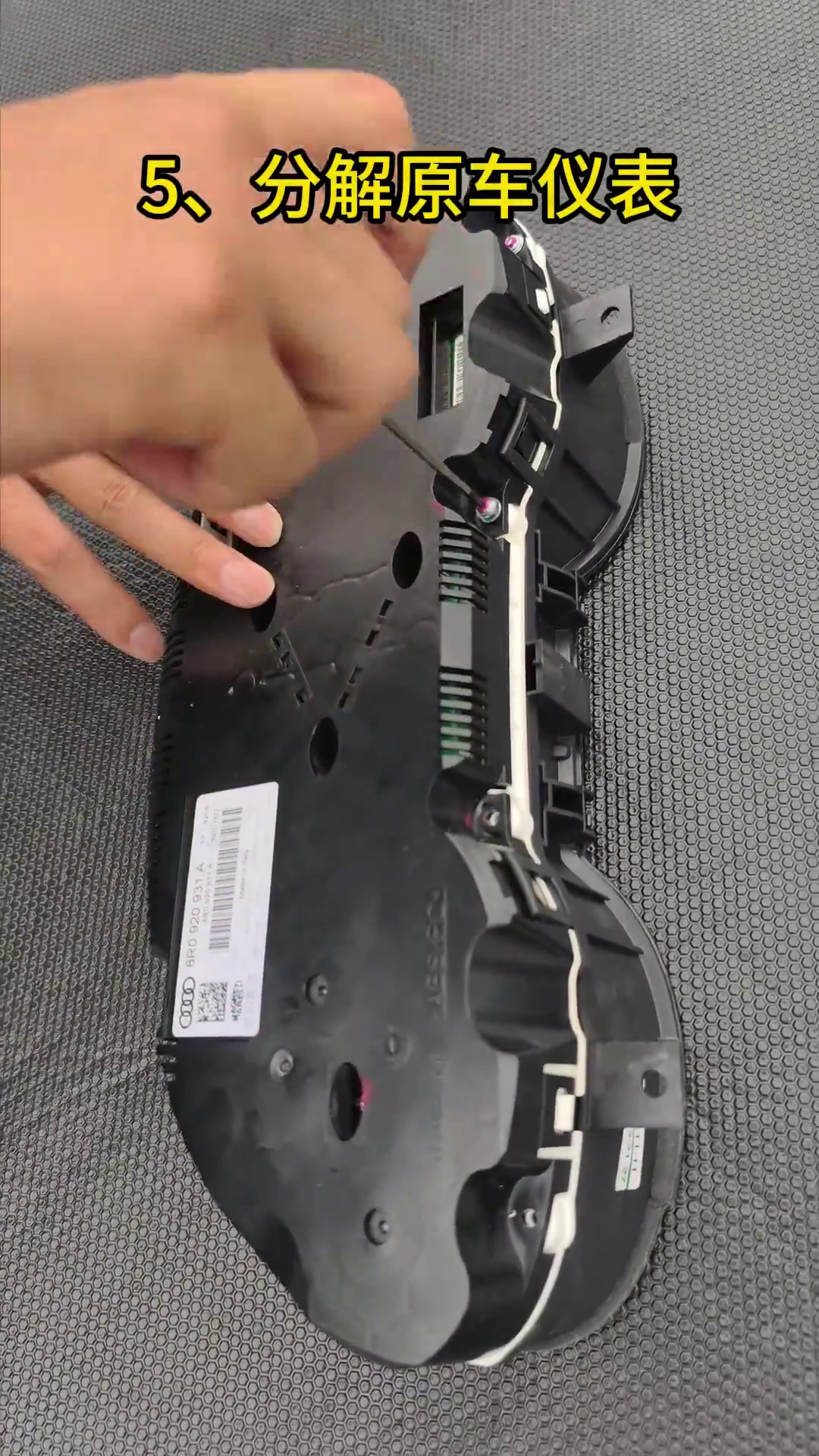
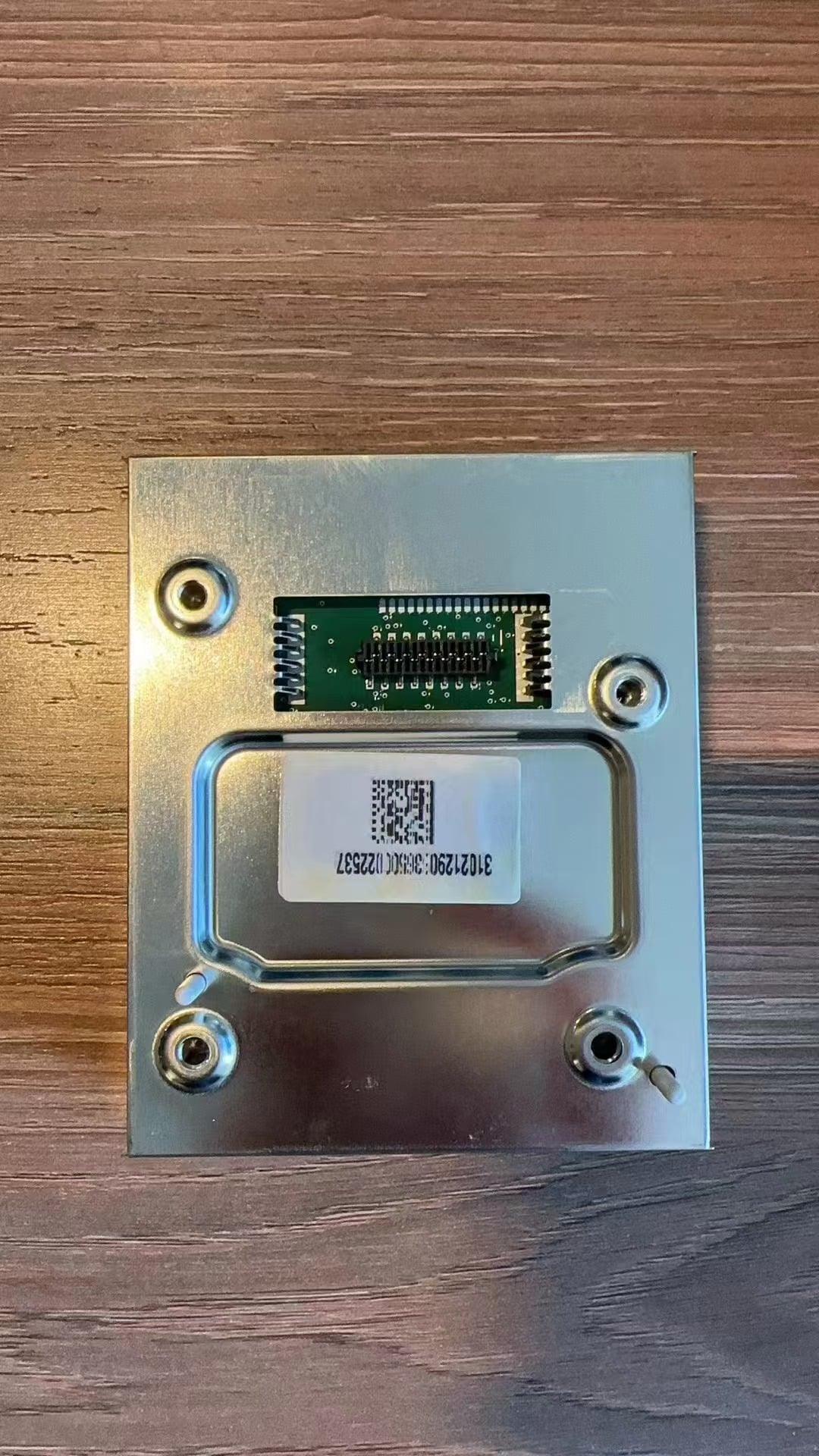
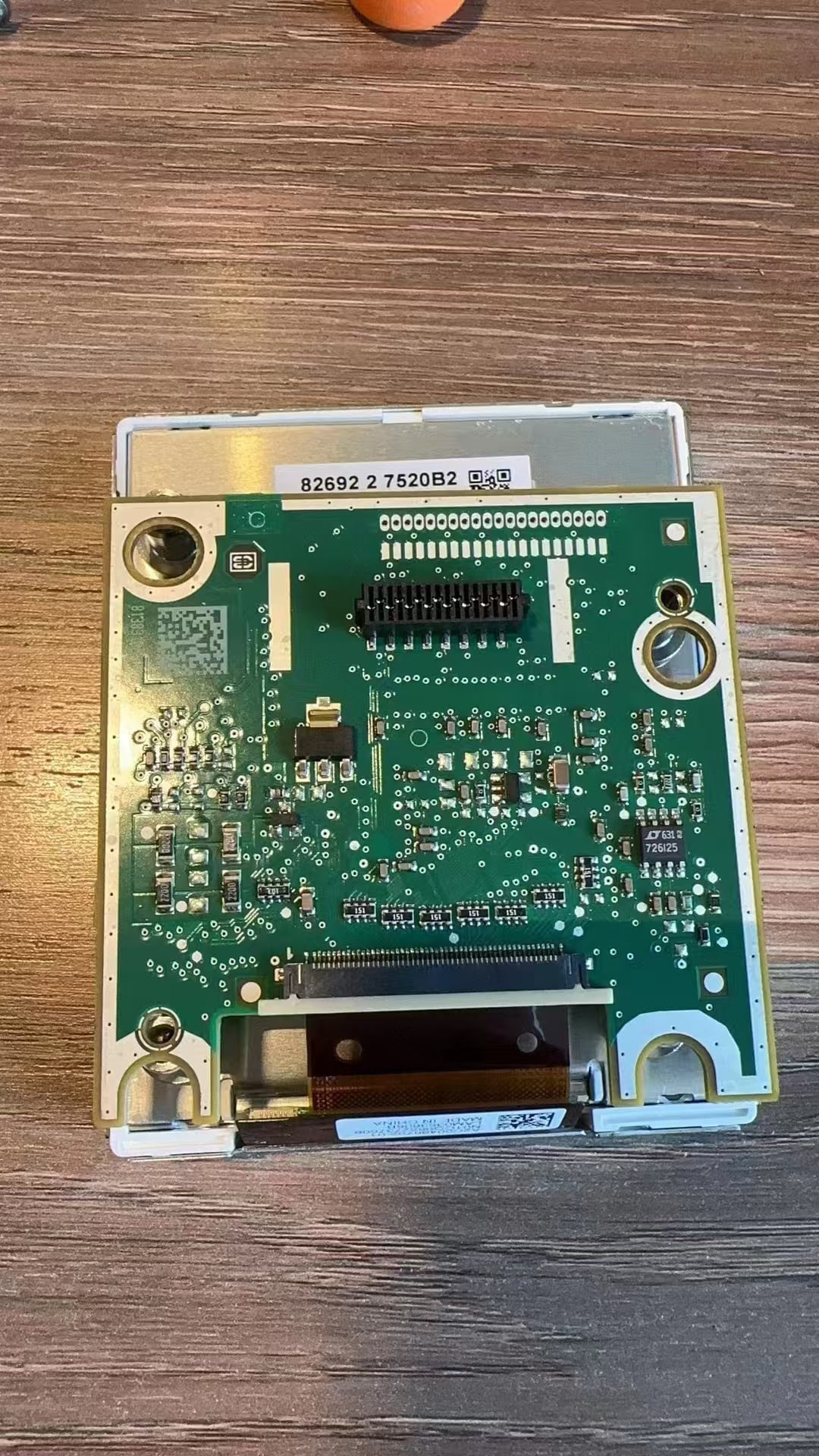
Inspecione o painel original para verificar a pequena placa auxiliar e transfira-a quando presente
Alguns painéis mecânicos de especificação superior incluem uma pequena placa de circuito auxiliar atrás do ecrã pequeno original. Se o seu painel dador tiver esta placa, ela deve ser posicionada e fixada dentro do novo conjunto de painel LCD conforme mostrado pelo percurso fornecido. Se o painel dador não tiver a placa, não adicione uma apenas porque outro veículo a tem.
- Verifique primeiro: inspecione atrás do ecrã pequeno original antes de descartar ou fechar quaisquer peças dadoras.
- Se presente: fixe a placa na posição necessária para que não se possa mover dentro da nova carcaça.
- Porquê: uma placa auxiliar omitida ou solta pode estar associada a indicação de combustível imprecisa ou avisos de instrumentos em versões aplicáveis.
- Antes de fechar: compare a posição da placa com a imagem de referência e confirme que não está a pressionar contra o LCD ou a cablagem.
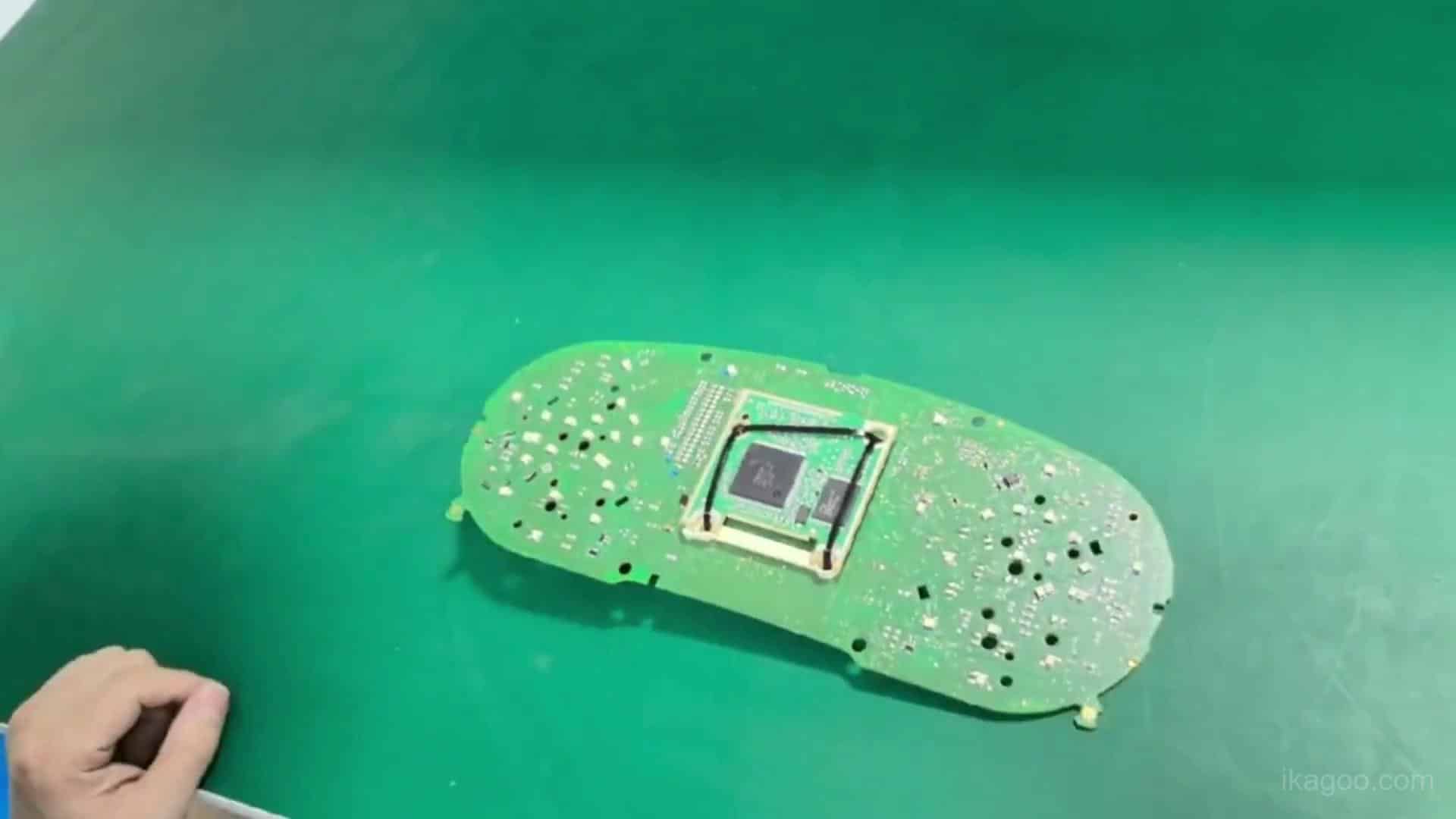
Transfira a placa principal original para a nova carcaça do painel digital
Mova a placa principal original retida para o novo conjunto do painel digital sem a dobrar ou torcer. Alinhe os pontos de montagem e de encaixe antes de aplicar pressão. Mantenha a PCB plana e certifique-se de que o percurso da placa auxiliar, quando aplicável, já foi tratado corretamente.
- Assente a placa plana: nenhum canto deve permanecer levantado ou sob tensão.
- Encaixe totalmente as ligações: não deixe uma fita, ficha ou ponto de encaixe parcialmente engatado.
- Mantenha os fios livres: nenhum fio deve passar sob uma borda da PCB ou ponto de parafuso da carcaça.
- Antes de fechar: inspecione visualmente todo o perímetro da placa e confirme que nada está preso.
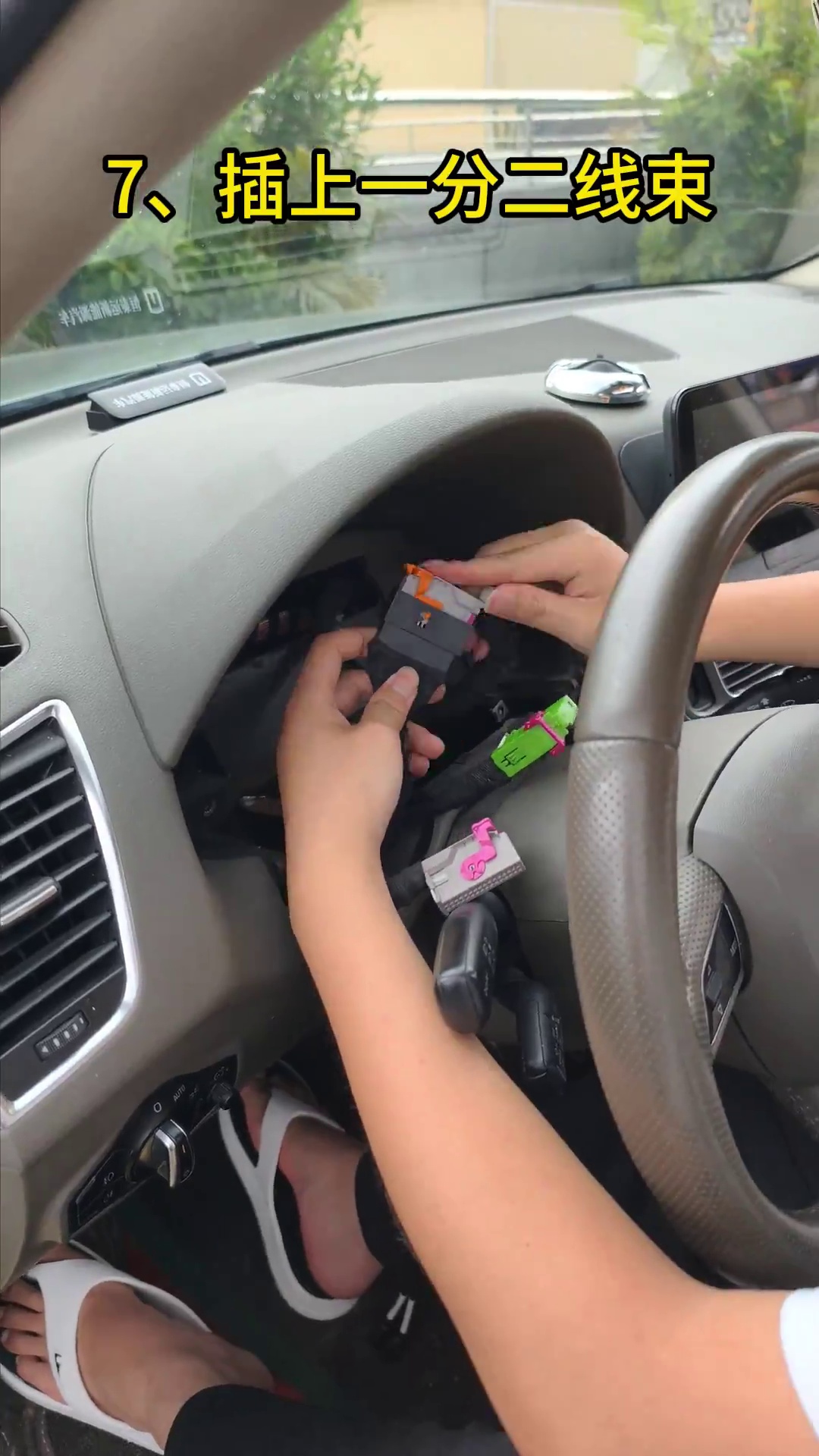
Ligue o chicote plug-and-play correspondente e encaminhe ambos os cabos USB antes de encaixar o painel de instrumentos
Ligue o chicote correspondente fornecido aos pontos de ligação corretos sem cortar ou emendar a cablagem original do veículo. Alinhe cada conector antes de o empurrar até ao fim. Na mesma fase, encaminhe os dois cabos USB fornecidos para uma zona de arrumação inferior acessível perto do volante, sempre que possível.
- Significado de plug-and-play: sem cortes nem emendas no chicote original do veículo; a desmontagem do painel de bordo e a transferência de eletrónica continuam a ser necessárias.
- Verificação do chicote: todos os conectores devem estar totalmente encaixados e o feixe deve ter folga suficiente para evitar tensão.
- USB 1: mantenha o USB com fios para atualização de software acessível.
- USB 2: mantenha o USB com fios compatível com espelhamento / projeção acessível quando a versão do painel fornecida disponibilizar esta função.
- Evite: prender o chicote ou os cabos USB atrás de uma aresta afiada da carcaça ao empurrar o painel de instrumentos de volta para o painel de bordo.
Onde devem ficar os cabos USB do painel digital do Audi Q5 após a instalação?
Resposta direta
Não enterre permanentemente os cabos USB fornecidos atrás do painel de bordo. Mantenha o USB de atualização de software e, quando a versão fornecida o suportar, o USB com fios de projeção / espelhamento de ecrã acessíveis a partir de uma zona de arrumação inferior prática perto do volante.
Antes do encaixe final: puxe suavemente cada cabo USB a partir do ponto de acesso previsto e confirme que permanece livre. Deixe folga suficiente para que o conector não fique sob carga quando o painel de instrumentos for empurrado para a posição.
Porque isto é importante: o suporte de software futuro ou uma verificação de projeção com fios compatível não deve exigir desmontagens desnecessárias do painel de bordo.
Limite de versão: As funções USB podem variar consoante a versão de hardware/software fornecida. Mantenha o percurso de acesso físico, mas apenas afirme as funções USB confirmadas para o painel de instrumentos exato fornecido.
O que deve ser testado antes de fechar o painel de bordo do Audi Q5 8R?
Ligue o painel digital antes da fixação final
Com o painel de instrumentos ligado mas ainda acessível, ligue a ignição e deixe o LCD iniciar. Ainda não feche o acabamento inferior. Compare o novo ecrã com as fotografias tiradas antes da remoção.
- Arranque: confirme que o LCD liga normalmente e não reinicia repetidamente.
- Estado do ecrã: verifique se existem linhas, zonas escuras de pressão, fissuras, áreas claras anormais ou danos visíveis no painel.
- Avisos: compare as luzes/mensagens de aviso com o registo original do painel de instrumentos ligado.
- Dados básicos do veículo: confirme que a informação visível esperada para o percurso confirmado do veículo está presente antes de fechar o painel de bordo.
- Se surgir um novo problema: pare e verifique novamente a placa principal transferida, a placa auxiliar, se aplicável, o encaminhamento do chicote e o assentamento dos conectores antes de considerar o software.
Segurança do LCD: não pressione a superfície do ecrã durante os testes ou o assentamento. Fissuras e marcas escuras de pressão são problemas de manuseamento físico e não podem ser reparados por software.
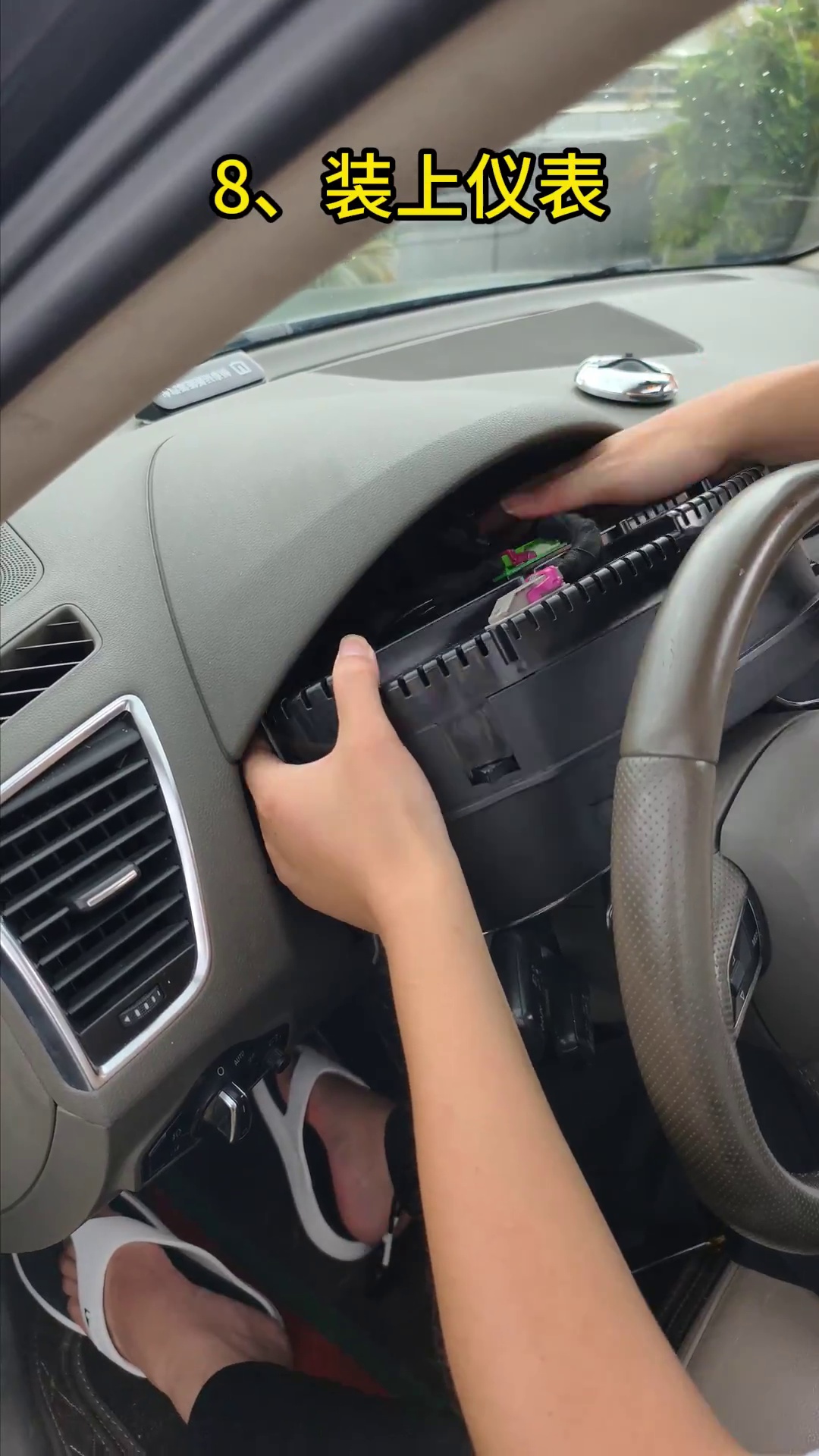
Assente o painel de forma uniforme, reinstale os parafusos retidos e feche o acabamento inferior
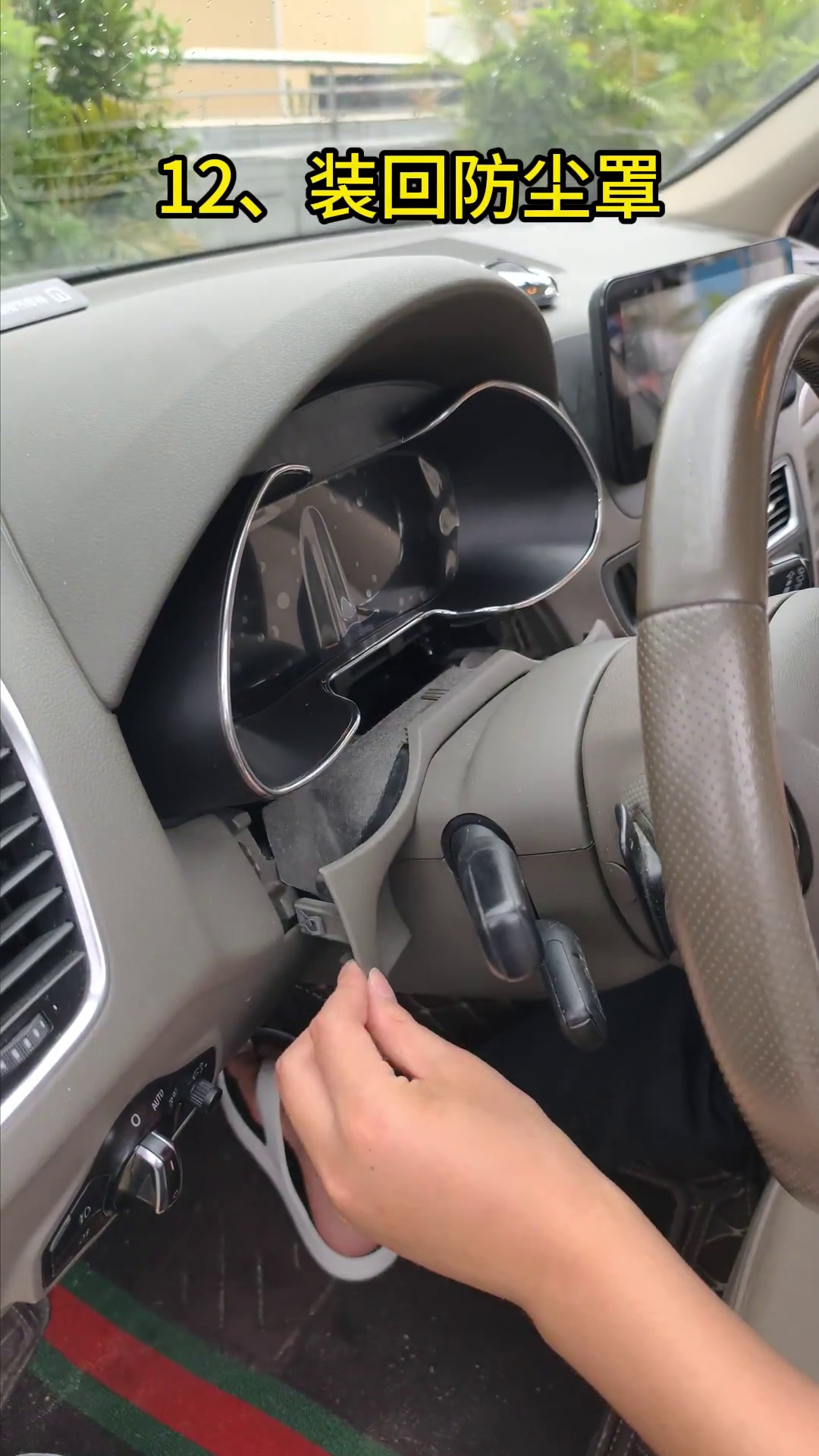
Só depois de o Passo 07 passar é que o painel deve ser movido para a sua posição final. Guie o chicote e os cabos USB por trás dele sem os dobrar acentuadamente. Reinstale os parafusos de fixação retidos e volte a colocar a proteção contra pó / acabamento inferior.
- Compatibilidade: o painel digital deve assentar de forma uniforme na abertura, sem que um dos lados seja forçado para dentro.
- Folga dos cabos: nenhum chicote ou cabo USB deve ficar entalado entre a carcaça e a estrutura do tablier.
- Proteção contra pó inferior: ajuste apenas onde a folga real o exigir; não remova mais material do que o necessário.
- Verificação final de pressão: o acabamento recolocado não deve pressionar a superfície do LCD nem a carcaça do painel.
- Verificação final de ignição: volte a ligar o veículo após o fecho e confirme que o estado do ecrã não mudou.
Como Calibrar o Indicador de Combustível Após uma Retrofit de Painel Digital Audi Q5 8R?
Resposta direta
Encha o depósito de combustível completamente, conduza algumas centenas de metros e depois abra Dados de condução → Quantidade recarregável. Utilize a quantidade reabastecível apresentada como o valor introduzido em Definições → Calibração da configuração → Capacidade do depósito de combustível. Após uma calibração bem-sucedida, a quantidade reabastecível deve voltar a 0 e o indicador de combustível deve mostrar cheio.
- Encha completamente o depósito de combustível do veículo.
- Conduza algumas centenas de metros para que o estado do ecrã seja atualizado.
- Abra Dados de condução → Quantidade recarregável e anote o valor apresentado.
- Abra Definições → Calibração da configuração → Capacidade do depósito de combustível.
- Introduza o valor da quantidade reabastecível registado no passo anterior.
- Verifique novamente o ecrã. A quantidade reabastecível deve voltar a 0 e o indicador deve mostrar o depósito cheio.
Se o resultado continuar errado: em veículos cujo painel dador continha a pequena placa auxiliar, confirme que a placa foi mantida e fixada corretamente antes de alterar repetidamente os valores de calibração.
Manter Physical Light Desativado Se Esta Definição Aparecer no Software do Cluster Fornecido
Resposta direta: Se o software fornecido mostrar uma Luz Física opção, mantenha-a desativada a menos que a rota de correção documentada exija especificamente a sua verificação, porque uma definição incorreta pode afetar o comportamento da apresentação dos indicadores de mudança de direção.
Ajuste o gráfico de exibição do modelo do veículo apenas depois de confirmar o encaixe do hardware
Se o pequeno gráfico do modelo do veículo não corresponder ao veículo real, introduza Definições → Seleção do modelo do veículo. Escolha o modelo correspondente, quando disponível. Após a seleção, desligue o veículo, tranque-o e aguarde alguns minutos. Isto altera apenas o gráfico visível do modelo. Não substitui a confirmação de compatibilidade de hardware. Porque é importante: Os utilizadores confundem frequentemente uma incompatibilidade de modelo de ecrã com uma incompatibilidade de hardware. O menu apenas altera a representação gráfica visível. Como verificar: Altere o gráfico do modelo, tranque o veículo e aguarde alguns minutos antes de verificar o novo estado do ecrã. Se for ignorado: O cliente pode assumir que o percurso do hardware está errado, embora apenas o ícone visível do modelo do carro necessite de ajuste.Lista de Verificação Final Antes de o Audi Q5 Voltar ao Uso Normal
| Item de verificação | O que verificar | Se não passar |
|---|---|---|
| Arranque do ecrã | O LCD inicia normalmente durante a primeira inspeção ao ligar a ignição. | Pare o fecho final e volte a verificar a etapa de transferência da placa e o encaixe do conector. |
| Pequena placa auxiliar, se aplicável | Se o painel de instrumentos original tinha a pequena placa, confirme que esta foi fixada e instalada corretamente. | Reabra a montagem e corrija a posição da placa auxiliar antes de culpar o software. |
| Estado do ecrã | Não são visíveis linhas, áreas escuras de pressão, fissuras ou danos no vidro. | Pare de manusear o ecrã; danos físicos no painel não são corrigidos por software. |
| Comparação de avisos visíveis | Compare os avisos atuais com o registo anterior à instalação. | Investigue os avisos que surgem recentemente em vez de os tratar como esperados. |
| Indicação de combustível | Após reabastecer, confirme o comportamento do indicador e a lógica da quantidade reabastecível. | Verifique a pequena placa, se aplicável, e depois efetue a calibração da capacidade do depósito de combustível. |
| Display do pisca | Confirme o comportamento de visualização do sinal de mudança de direção esquerdo e direito. | Verifique se a Physical Light não está ativada incorretamente caso esta definição apareça na rota de software fornecida. |
| Acesso ao cabo USB | O USB de atualização e o USB de projeção suportado permanecem acessíveis. | Corrija o percurso do cabo antes de fechar totalmente o painel de instrumentos. |
| Compatibilidade e acabamento | O conjunto assenta uniformemente e o acabamento inferior não pressiona o ecrã. | Reabra a fase de acabamento e verifique a folga apenas onde o ajuste é realmente necessário. |
| Funções suportadas | Verifique apenas as funções confirmadas para o veículo e a rota do produto fornecidos. | Não assuma a manutenção universal das funcionalidades; compare com a referência confirmada. |
| Foto da versão do software | Guarde uma fotografia do ecrã da versão instalada antes de qualquer atualização posterior. | Não aplique pacotes de atualização online ou por USB de forma indiscriminada a uma versão não registada. |
Como Este Guia de Instalação do Audi Q5 8R Foi Preparado e Verificado
Este artigo é mantido pelo Equipa Técnica da iKAGOO para a rota de retrofit de painel digital de primeira geração do Audi Q5 / SQ5 8R documentada nesta página. As instruções baseiam-se nas fotografias de instalação específicas do veículo, referências de transferência de placa dadora, exemplos de placa auxiliar, pontos de verificação em vídeo, verificações de primeira ligação e passos de calibração pós-instalação apresentados no guia.
Evidência de instalação em primeira mão
O artigo utiliza imagens reais das fases de instalação do Q5 8R, abrangendo a remoção do painel, a abertura do painel dador, a transferência da placa original, a ligação do chicote, o teste de ligação e a remontagem do acabamento inferior.
A compatibilidade não é inferida a partir de um emblema
As designações Q5, SQ5, TFSI, TDI, quattro, Premium, Premium Plus ou Prestige não são tratadas como prova automática de compatibilidade. A iKAGOO verifica o ano do veículo, o painel original ligado, a disposição do tablier e a configuração LHD/RHD.
Os limites conhecidos são declarados abertamente
As referências de menu partilhadas Audi/VW, o comportamento de projeção USB, as rotas de atualização e as funções retidas podem variar consoante a versão fornecida. O guia separa a lógica de instalação confirmada do comportamento dependente da versão.
Revisado: 2 de setembro de 2026
Âmbito: rota de retrofit de painel mecânico compatível com Audi Q5 / SQ5 8R, com um limite de compatibilidade iKAGOO 2009–2017.
Regra editorial: se o veículo exato ou o painel fornecido não corresponder a uma rota documentada, o artigo instrui o instalador a parar e verificar em vez de assumir a compatibilidade.
Percurso do Pacote de Atualização do Digital Cluster Audi / Volkswagen Suportado
A FixMyDash destina-se à compra de pacotes de atualização de software de painel digital Audi / Volkswagen compatíveis e ao suporte relacionado com o pacote. É uma via de suporte separada para painéis digitais existentes compatíveis. Não é um serviço de reparação de hardware. Não promete reparar danos no ecrã, placas danificadas, falhas de cablagem, instalação incorreta, falhas de comunicação ou problemas não relacionados com o veículo. Comprar Pacote de Atualização Suportado Ver Guia de Atualização Online / USBPrecisa do Quadro de Instrumentos Digital Audi Q5 8R Correspondente para 2009–2017?
Os clientes que procuram a rota completa de hardware do painel de instrumentos digital iKagoo do Audi Q5 8R para compatíveis Modelos Audi Q5 / SQ5 8R de 2009–2017 devem usar a página de produto correspondente e a rota de confirmação de compatibilidade antes de encomendar. Ver Produto do Painel de Instrumentos Digital Audi Q5 Confirmar Compatibilidade com iKagooPerguntas de instalação do Audi Q5 8R Virtual Cockpit
Este guia é para os modelos Audi Q5 8R europeus e norte-americanos?
Sim, o guia foi escrito em torno da rota de painel mecânico de primeira geração do Audi Q5 / SQ5 8R utilizada por proprietários na Europa e na América do Norte. O limite de compatibilidade iKAGOO nesta página mantém-se 2009–2017. Os veículos Q5 norte-americanos do ano-modelo 2018 e posteriores são de uma geração diferente. Os veículos europeus registados pela primeira vez em 2008 exigem confirmação individual antes de ser utilizada esta rota de hardware 2009–2017. Designações de motor ou acabamento como TFSI, TDI, quattro, Premium, Premium Plus, Prestige ou SQ5 não substituem a confirmação fotográfica do painel original.








Add comment